Hopefully you have spent some time in Terminal getting familiar with the previous commands. Now it is time for a few more!
One thing I always try to do is to organize a new project or set of files in their own place. In the real world, we put files and folders in a filing cabinet. With computers, we call them files and directories (or sometimes folders).
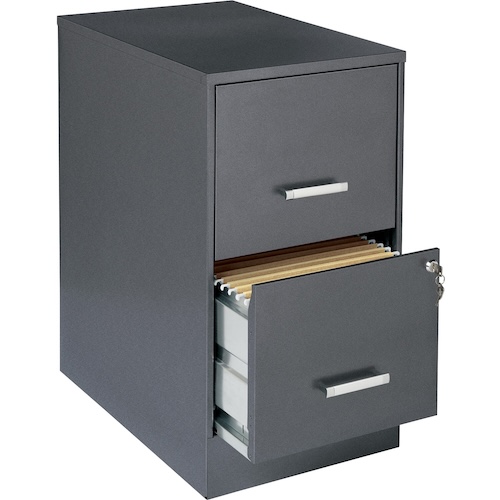
A directory is like a drawer in a filing cabinet. It may contain single pages, several pages stapled together, several file folders full of other pages, or even other folders.
In terminal you are always ‘in’ a particular directory. Your hard drive is organized into a directory ‘tree’ like so:
/
/Applications
/Documents
/Media
/Music
/My Stuff
/Users
There will be other directories / folders but this is an example of a typical Hard Drive.
So when we talk about cd or pwd, mv, rm and other commands, this is what we are referring to.
This command is usually used to update the date a file was last opened or used. But it also has another handy feature we can use right now ...
It creates empty files!
I know you're scratching your head thinking 'Why would anyone want to create a file with nothing in it?'.
In our 'learning bash' situation, we are going to need some files to work with, and rather than use your existing files, for now we will make our own 'test files'. They just happen to be empty, so they don't take up any room!
So in Terminal, 'cd' to your Desktop ...
cd ~/Desktop
Just for fun, check to make sure you're in the right spot.
You do remember how to do that, right? 'pwd'.
Now enter 'touch FileOne' in Terminal and hit Enter (return).
2024-11-22 12:21:00
[~/Desktop] trudge: touch FileOne
2024-11-22 12:21:10
[~/Desktop] trudge:
Hmmm. Nothing seems to have happened, unless you now look at your Desktop. In Finder, open the 'Desktop' window, or if you have your Terminal window small enough, you will see a new file named 'FileOne'.
And now if you also do 'ls -al', you will see that it does exist, and has 0 bytes.
-rw-r--r-- 1 trudge staff 0 Nov 22 12:21 FileOne
Excellent. For now just leave it there, we will remove it later.
To make a directory to store your files for that new project, we use the mkdir command.
In Terminal change to your Desktop directory ... cd ~/Desktop
Make sure you are in your Desktop directory ... pwd
For practice we will first create a directory (on your Desktop) named 'Directory One'.
[~/Desktop] trudge: mkdir "Directory One"
2024-09-13 19:00:42
[~/Desktop] trudge:
You won't see anything different in the Terminal window yet. But if your Desktop is visible, you should see a new 'folder' named "Directory One".
If you now run the command ls, you should see a new directory: Directory One.
[~/Desktop] trudge: ls
Directory One
2024-09-13 19:05:19
[~/Desktop] trudge:
Let's make another directory without any spaces in the name. No quotes needed ...
2024-09-13 19:05:19
[~/Desktop] trudge: mkdir DirectoryTwo
2024-09-13 19:08:56
[~/Desktop] trudge: ls
Directory One	DirectoryTwo
2024-09-13 19:09:27
[~/Desktop] trudge:
What is in those directories? ...
2024-09-13 19:11:54
[~/Desktop] trudge: ls -al "Directory One"
total 0
drwxr-xr-x  2 trudge  staff   64 Sep 13 19:00 .
drwx------@ 7 trudge  staff  224 Sep 13 19:08 ..
2024-09-13 19:14:08
[~/Desktop] trudge:
2024-09-13 19:11:24
[~/Desktop] trudge: ls -al DirectoryTwo
total 0
drwxr-xr-x  2 trudge  staff   64 Sep 13 19:08 .
drwx------@ 7 trudge  staff  224 Sep 13 19:08 ..
2024-09-13 19:11:54
[~/Desktop] trudge:
Hmmm. They both seem to contain 2 directories! The dot and double-dot.
Now let's put a directory INSIDE another one...
[~/Desktop] trudge: cd DirectoryTwo
2024-09-14 10:49:29
[~/Desktop/DirectoryTwo] trudge: mkdir ThirdDir
2024-09-14 10:49:43
[~/Desktop/DirectoryTwo] trudge: ls -al
total 0
drwxr-xr-x  3 trudge  staff   96 Sep 14 10:49 .
drwx------@ 7 trudge  staff  224 Sep 13 19:08 ..
drwxr-xr-x  2 trudge  staff   64 Sep 14 10:49 ThirdDir
2024-09-14 10:54:45
[~/Desktop/DirectoryTwo] trudge:
As mentioned, a directory can have several directories inside it (nested).
The dot and double-dot are 2 special file names which stand for the current directory [.], and its parent [..], the directory it's in.
These 2 special names (actually inodes) are found on every computer system.
They become important when using cd and other commands later when you need to specify a path.
Here is a good explanation.A few other things are possible with mkdir. That's next...
mkdir 2