
Perl Refreshments ⌘
Some c00l tricks and treats
One of the things I like about Perl, and possibly why it is still very popular, is its versatility.
By that I mean that it handles jobs not only from a shell via the command line, but also through a web browser via a web server.
On these pages I'll try and show you some of the things I use Perl for, and that may be unique to it. Perhaps another page (or few) will deal with web programming and site development.
Since I work on an iMac, this is easy to get going, as most iMacs already come with Perl installed. However, after Catalina, you may not find Perl, Python, or Ruby natively installed - you will have to install those languages yourself.
Not to mention some other *nix goodies like awk, sed, and an Apache web server.
On my 'newish' M1 running Monterey, I had to install Perl and Ruby. Apache web server is still installed.
Treat #1 - Inline Editing
During the course of writing all these pages, I realized that I wanted to change the <title> on all the HTML pages - over 20 files.
It used to be 'Perl Tutorials' but I wanted to change it to 'Perl Refreshments'.
I spend a lot of time in a text editor and am quite comfortable at it, but changing 1 word in about 20 files seemed a little ridiculous. Granted I could use an HTML authoring tool, but I roll all my own code - HTML, JavaScript, and Perl. So here is how I managed this little editing job.
Perl can be run with certain arguments on the command line to make it do different things. One of things it can do is called 'inline file editing'. What that means is that Perl can open a file, do some editing, and close the file - all without an editor of any kind.
In the directory with all my HTML files I ran this 1-liner:
perl -pi'.old' -e 's/Tutorials/Refreshments/' *.html
You might recognize part of that code to do some string substitution.
Basically it tells Perl to walk through all '.html' files in the current directory, copy them to a new file with a '.old' extension, replace 'Tutorials' with 'Refreshments', and do this for each file.
Very nice! And very quick too.
That's one of the things I like about Perl :)
After I checked to see everything was fine (all 20-some files), I deleted all the files ending in '.old':
rm *.old
Treat #2 - Remove blank lines
Many times I need to remove blank lines from a text file. Of course I could open it up in my text editor, and page through it looking for blank lines to remove. But ...
perl -ne "print unless /^$/;" oldfile > newfile
# if a line contains just spaces:
perl -ne "print unless /^\s+$/;" oldfile > newfile
... this seems so much easier!
Treat #3 - Swap Variables
If you've already done some programming, you have probably had to swap 2 or more variables at some point. In most programming languages, to swap 2 variables, you actually need a 3rd one:
my ($alpha,$bravo) = ("alpha","bravo");
my $temp = $alpha;
$alpha = $bravo;
$bravo = $temp;
But Perl lets us do away with the $temp variable:
print "A double swap:\n";
my ($alpha,$bravo) = ("alpha","bravo");
print "Old:\n\t\$alpha:$alpha\n\t\$bravo:$bravo\n";
($alpha,$bravo) = ($bravo,$alpha);
print "New:\n\t\$alpha:$alpha\n\t\$bravo:$bravo\n";
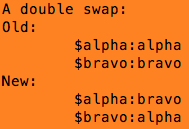
We can even swap more than 2 variables ... no kidding.
print "Time for a triple swap\n";
my ($alpha,$bravo,$charlie) = ("a","b","c");
print "Old:\n";
print "\t\$alpha:$alpha\n\t\$bravo:$bravo\n\t\$charlie:$charlie\n";
print "New:\n";
($alpha,$bravo,$charlie) = ($bravo,$charlie,$alpha);
print "\t\$alpha:$alpha\n\t\$bravo:$bravo\n\t\$charlie:$charlie\n";
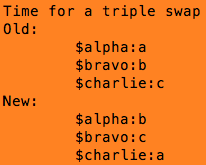
In those examples, you may notice something strange in the print statements.
Some of the variables have a back-slash ahead of the $:
\$alpha \$bravo \$charlie
That's not a typo - since $ is a special character in Perl, to actually print one, we need to 'escape' it with a back-slash. It's one of those 'miscreants' mentioned earlier.
So to print the name of a variable (and not its value) we use this technique. This applies to arrays and hashes as well.
This is a handy debugging tool to see what a variable actually contains.
Use it.
Treat #4 - Logging script errors
When you run a script with a syntax error, typo, or other mistake, Perl will usually stop and give you some kind of error message on the monitor (you DO have use strict; and use warnings; included at the top of ALL your scripts, right?).
#! /usr/bin/perl
use strict;
use warnings;
Most times when an error happens, you can zero in on the line or section of code that is causing the problem and fix it. Perl is very helpful with debugging - it tells you the problem (as it sees it) and the line number where it first saw the problem.
But sometimes, you get a whole page of 'warnings' and 'errors' - it can be a real bear trying to go through the log file and squash all the bugs.
This can be especially annoying if you have a web script that goes awry, and instead of 'failing gracefully', blurts everything out to the user - not what you want.
Here is some code that I always include in any scripts I make. It goes right after use warnings;:
BEGIN
{
	open (STDERR,"> $0.txt");
	print STDERR scalar localtime, "\n";
}
This is a BEGIN block, and as the name suggests, it executes this code BEFORE compiling any code in your script. In this block, I set it to send any messages to a file, which I can then check for errors.
The first line opens a standard file handle and redirects the output to a file. You could choose any name you like for this file, but I choose to give it the same name as the script, with a '.txt' extension. That's what "> $0.txt" is doing. The $0 is another special variable meaning the name of the current script.
It tells the system to overwrite an existing file of the same name. So you only get the latest error.
I chose this particular naming since the log file is now very easy to find - it's named the same as the script that created it, and in the same directory.
So a script named findNames.pl would create a log file named findNames.pl.txt.
Note the use of a single redirect symbol ">", which as you should know creates a new file when executed. You could add double ">>" symbols to cause concatenation instead of a new file, but beware of this - log files can grow exponentially!
The second line of the block writes the date and time on a line by itself - a very handy clue to debugging.
Here is a typical log file created with this method:
Tue Mar 31 19:52:50 2015
DBD::mysql::st execute failed: Column 'pubyear' cannot be null at
/Users/user/Documents/httpd/cgi-bin/kb/mysql/kbcommit.pl line 60.

Tue Mar 31 19:53:15 2015
DBD::mysql::st execute failed: You have an error in your SQL syntax;
check the manual that corresponds to your MariaDB server version
for the right syntax to use near '"NULL","How the function works
with arrays or hashes.","A",1,"Perl",198)' at line 1 at
/Users/user/Documents/httpd/cgi-bin/kb/mysql/kbcommit.pl line 60.

Tue Mar 31 19:53:43 2015
This is from a script accessing a MySQL database - after finding the 2 errors logged, the code was fixed and only a date/time was logged the next time the script was run.
The beauty of creating a log file of errors becomes immediately apparent if you write scripts for web sites. Your script may be executed hundreds of times a day (or minute) and any errors are usually sent to 1 file on the server - along with all the other errors of other scripts.
Trying to find the errors created by your script in this log file is beyond a nightmare.
If you use this method on web-based scripts, you would be wise to comment it out AFTER you are confident it works properly, and BEFORE you make it public.
Every time the script is run it prints something to this log file, and if you forget about it, it can grow VERY HUGE.
#BEGIN
#{
#	open (STDERR,">> $0.txt");
#	print STDERR "\n", scalar localtime, "\n";
#}
If at some point in the future the script again begins misbehaving, you only have to 'uncomment' the block to get a log file.
Treat #5 - What line was that on?
Creating an error log file goes a long way to creating good code, but sometimes you want to know what line is actually being executed.
In the development stages of a large project I like to see 'where I am' in the code - what subroutine is executing now; this is where I connect to the DB; etc.
Perl uses a special token called __LINE__ to indicate the current line being executed. So 2 underscores and the word LINE, followed by 2 more underscores.
Here's how to use it:
sub Init {
	print "<p>[" . __LINE__ . "] Running Init ...</p>";
As you can see, it is the first line in a subroutine called Init, so when the script runs I know I have gotten at least this far.
If the project is for public consumption you can comment out those lines if desired.
Treat #6 - Get the last line of a file
I recently had a situation where I needed to have access to the last line of a text file. Simple you say - just load the file into an array and use '$#array' to get the last index!
That's fine unless your file is a few gigabytes long and you don't want to build an array that large just to get the last line. And don't forget to empty that array after!
There is a better way. As you know Perl can run system files, and the Mac (being built on Unix) has lots of tools for dealing with stuff like this. One of those tools is the 'tail' command.
This command surprisingly shows you the 'tail' end of a text file. And you can specify how much of the tail you want to see!
So to save the last line of a file to a variable, we do this:
my $lastline=`tail -n1 "your file here.txt"`;
Note the use of the back ticks (`) to enclose the full command. And the filename is double-quoted because it has spaces in it. To get the last 5 lines:
my $last5=`tail -n5 "your file here.txt"`;
Our next trick will be storing data inside your script.